How To Easily Remove Stopwords In Excel
Stopwords are considered noise because they occur frequently and offer little to no unique information about the content of a text. Removing them helps focus on more meaningful words.
If you read this because you deal with stopwords and need an easy way to use them, go to Step 2
For You, that are here driven by curiosity, I am write you some light information (click here)
- For example, let’s say you have a sentence like “I like this article and would be happy to learn more”
- The sentence without stopwords might look like “like article would happy learn more”. Therefore, in this case, “I, this, and, be, to” are removed
- If you only have a few sentences, it’s easy to identify the speaker’s feelings. But what if you have 1000 sentences?
- In this case, you should automatically remove the stopwords and analyze only the important words
Anyway, there are many cases where you need to remove stop words. Below I show you an easy way to remove them
Step 1 : Let’s prepare a list of stopwords
You can easily find a list of common English stop words online (for example, from the NLTK library list). Or you can download here a simple list that I prepared for this exercise
Copy the list into a new sheet in your Excel workbook.
Step 2. Time to write a VBA Script for stopwords removal

For non-technical: Don’t think you’re not comfortable with VBA or macros. Get rid of the thought that these are rocket science. Just do it!
In Excel press Alt + F11 to open the VBA editor.
Then go to Insert > Module to create a new module.
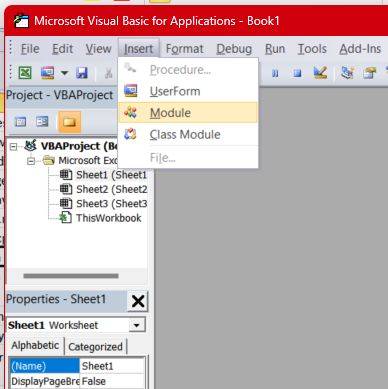
Now copy and paste the following VBA code:
Function RemoveStopwords(text As String, rngStopwords As Range) As String

    Dim cell As Range

    Dim result As String

    result = text

    For Each cell In rngStopwords

        result = Replace(result, " " & cell.Value & " ", " ")

    Next cell

    RemoveStopwords = result

End Function
As a result you have:

Now close the VBA editor.
And go back in Excel. As a result, you can use this new function similarly to how you use any other functions. For example, in Sheet1, Column B:
=RemoveStopwords(A1, Sheet2!A1:A127)As a result, this VBA function will remove the stopwords listed in Sheet2!A1:A127 from the text in Sheet1!A1.
For non-technical people: Hey, you’re feeling technical now, isn’t it? I told you it is easy!
Step 3. Do never forget to Test and Refine
After removing, check the result. You may have found other words that you want to remove. So add them to the list of stop words.
Remember, however, that the quality of text analysis will also depend on how accurately stop words are removed and the context of the remaining text.
Step 4. It’s time to reflect: stopword isn’t a rocket science
Hey, Technical-Person, if you know an easier way to remove the stop words, be kind and add it in the comment and I will promote it as the #aeap method in GitAvia group.
And last, for You, the non-technical one, if you really wanna try it, don’t waste too much time getting stuck in any of the steps, write to me in the comments and I’ll help you.


43 Comments